---
title: Completing a Participant's Data Collection
description: Learn how to mark participants as Completed in Labfront to stop data collection, log them out, and keep your study dashboard clutter-free.
---
[Skip to content](https://help.labfront.com/completing-a-participants-data-collection#main-content)
[Contact Support](https://help.labfront.com/kb-tickets/new?hsLang=en)
[](https://www.labfront.com)
- [Sign In](https://app.labfront.com/)
- [Back to Website](https://www.labfront.com/)
Open main navigation
Close main navigation
- [Sign In](https://app.labfront.com/)
- [Back to Website](https://www.labfront.com/)
- [Contact Support](https://help.labfront.com/kb-tickets/new)
How can we help you?
- There are no suggestions because the search field is empty.
1. [Help Center](https://help.labfront.com/?hsLang=en)
2. [Using Labfront](https://help.labfront.com/using-labfront?hsLang=en)
3. [Participant Management](https://help.labfront.com/using-labfront?hsLang=en#participant-management)
# Completing a Participant's Data Collection
## When a participant has finished their part in your study, you can mark them as Completed to stop data collection and keep your dashboard clean. This is especially useful if you run your study in cohorts or reuse devices across batches.
---
**This article covers:**
- [What happens when you complete a participant](https://help.labfront.com/completing-a-participants-data-collection#complete-overview)
- [How to complete a single participant](https://help.labfront.com/completing-a-participants-data-collection#how-to)
- [What the participant experiences](https://help.labfront.com/completing-a-participants-data-collection#experience)
- [Understanding participant statuses](https://help.labfront.com/completing-a-participants-data-collection#statuses)
- [Completing vs deleting a participant](https://help.labfront.com/completing-a-participants-data-collection#complete-vs-delete)
- [FAQ](https://help.labfront.com/completing-a-participants-data-collection#FAQ)
---
### **What happens when you complete a participant**
Completing a participant triggers the following automatically:
- The participant is automatically logged out of the Labfront Companion app. *If they're using an older app version, they will be logged out after trying to complete a task.*
- Data collection stops permanently. Labfront stops collecting data from the participant’s wearable (e.g., Labfront Companion, Garmin Connect).
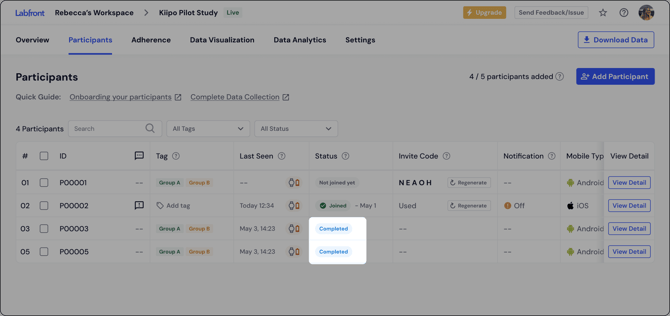
- The participant’s status in the Participants table changes to **Completed**.
---
### **How to complete a single participant**
1. Go to the **Participants** tab of your study.
2. Find the participant you want to complete and click **View Detail/Note** to open their **Participant Details** panel.
3. Scroll down to the **Danger Zone** section and click **Complete Data Collection**.
4. A confirmation dialog will appear showing the latest data received from this participant. Check the box to confirm you understand the participant will be logged out and any data not yet uploaded may be lost.
5. Click **Complete Data Collection** to confirm.
The participant’s status will update to **Completed** in the table.
##### ⚠️ Note
Once a participant is completed, this action cannot be undone. Make sure the participant has finished their study activities before proceeding.
---
### **What the participant experiences**
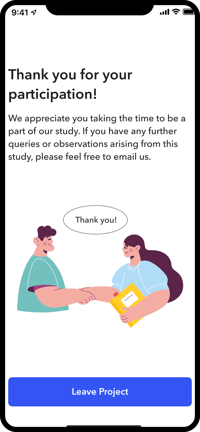
Once you complete a participant’s data collection, here’s what happens on their end:
- They are automatically logged out of the Labfront Companion app.
- They will see a “Thank you for your participation” screen, letting them know the study is over.
- They will no longer be able to log back into the study.
---
### **Understanding participant statuses**
| ##### **Status** | ##### **Meaning** |
| --- | --- |
| ##### Not joined yet | The participant has been added but hasn’t used their invite code to join. They can be deleted at any time. |
| ##### Joined | The participant has successfully joined and is actively using the app. |
| ##### Completed | Data collection has been finalized. The participant has been logged out and is excluded from active stats. |
---
### **Completing vs. deleting a participant**
| ##### **Action** | ##### **Stops Data Collection** | ##### **Logs Out Participant** | ##### **Removes Data** |
| --- | --- | --- | --- |
| ##### Complete | Yes | Yes | No |
| ##### Delete | Yes | Yes | Yes (participant info removed) |
Use Complete when a participant has genuinely finished the study. Use Delete *only* if you need to fully remove a participant and their associated information.
---
### **FAQs**
#### **Will completing a participant affect my pricing?**
No. Marking a participant as completed does not change your plan pricing.
#### **Can I schedule a completion date in advance?**
Not currently. Completion must be triggered manually by the researcher.
#### Can I complete multiple participants at once?
That feature will be available in a future version.
#### **What if the participant hasn’t uploaded all their data yet?**
Ensure the participant has uploaded their data beforehand. Any data not yet uploaded at that point may be lost, which is why the confirmation dialog shows you the latest data received timestamp before you proceed.
#### **Does completing a participant remove them from the Download Data screen?**
No. Completed participants are still available for data export. You’ll see a Completed badge next to their ID in the Download Settings screen so you can include or exclude them as needed.
- [Getting Started](https://help.labfront.com/getting-started?hsLang=en#main-content)
- [Getting Started FAQs](https://help.labfront.com/getting-started?hsLang=en#getting-started-faqs)
- [Getting Started with Labfront Guide for Researchers](https://help.labfront.com/getting-started?hsLang=en#getting-started-with-labfront-guide-for-researchers)
- [Using Labfront](https://help.labfront.com/using-labfront?hsLang=en#main-content)
- [Project Creation, Setup and Edits](https://help.labfront.com/using-labfront?hsLang=en#project-creation-setup-and-edits)
- [Workspace](https://help.labfront.com/using-labfront?hsLang=en#workspace)
- [Participant Management](https://help.labfront.com/using-labfront?hsLang=en#participant-management)
- [Participant App](https://help.labfront.com/using-labfront?hsLang=en#participant-app)
- [Users and Accounts](https://help.labfront.com/using-labfront?hsLang=en#users-and-accounts)
- [Participant Experience](https://help.labfront.com/using-labfront?hsLang=en#participant-experience)
- [Garmin](https://help.labfront.com/garmin?hsLang=en#main-content)
- [General](https://help.labfront.com/garmin?hsLang=en#general)
- [Using Device](https://help.labfront.com/garmin?hsLang=en#using-device)
- [Movesense](https://help.labfront.com/movesense?hsLang=en#main-content)
- [General](https://help.labfront.com/movesense?hsLang=en#general)
- [Using Device](https://help.labfront.com/movesense?hsLang=en#using-device)
- [Data](https://help.labfront.com/movesense?hsLang=en#data)
- [Dexcom](https://help.labfront.com/dexcom?hsLang=en)
- [Data Metrics and Analysis](https://help.labfront.com/data-metrics-and-analysis?hsLang=en#main-content)
- [Data Management](https://help.labfront.com/data-metrics-and-analysis?hsLang=en#data-management)
- [Data Metrics](https://help.labfront.com/data-metrics-and-analysis?hsLang=en#data-metrics)
- [Data Analytics](https://help.labfront.com/data-metrics-and-analysis?hsLang=en#data-analytics)
- [Analytics Reports](https://help.labfront.com/data-metrics-and-analysis?hsLang=en#analytics-reports)
- [Pricing, Plans and Payment](https://help.labfront.com/pricing-plans-and-payment?hsLang=en)
- [Legal and Security](https://help.labfront.com/legal-and-security?hsLang=en)
- [Participant Resources](https://help.labfront.com/participant-resources?hsLang=en#main-content)
- [Participant Guides](https://help.labfront.com/participant-resources?hsLang=en#participant-guides)
- [Supporting Resources](https://help.labfront.com/supporting-resources?hsLang=en#main-content)
- [Grants, Funding and IRB Applications](https://help.labfront.com/supporting-resources?hsLang=en#grants-funding-and-irb-applications)
[](https://www.labfront.com)
Boston, MA, USA
[mailto:support@labfront.com](mailto:support@labfront.com)
Copyright © 2026, Labfront