
Raw accelerometer data generates high data volume. Unlike background metrics, ACC data isn't captured passively, participants manually start and stop each recording session through a dedicated task you configure in the App Builder. This article walks you through that setup.
In this article:
- Add a Garmin device and select your metrics
- Create a Garmin Streaming Task for ACC data
- Understand what participants see and do
- FAQs
Add a Garmin device and select metrics
Before you can collect ACC data, add a Garmin device to your project.
In the App Builder, click + Add Device(s) and select Garmin Devices.
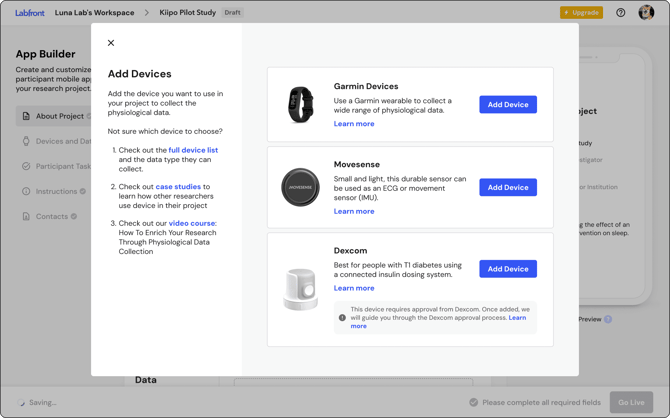
Once the device is added, select your data source and metrics. For accelerometer data, toggle on the Labfront Companion app, then select 3-Axis Accelerometer from the data type list. Add any other metrics you want to collect at this step.
Learn more about Garmin Connect vs. Labfront Companion data →
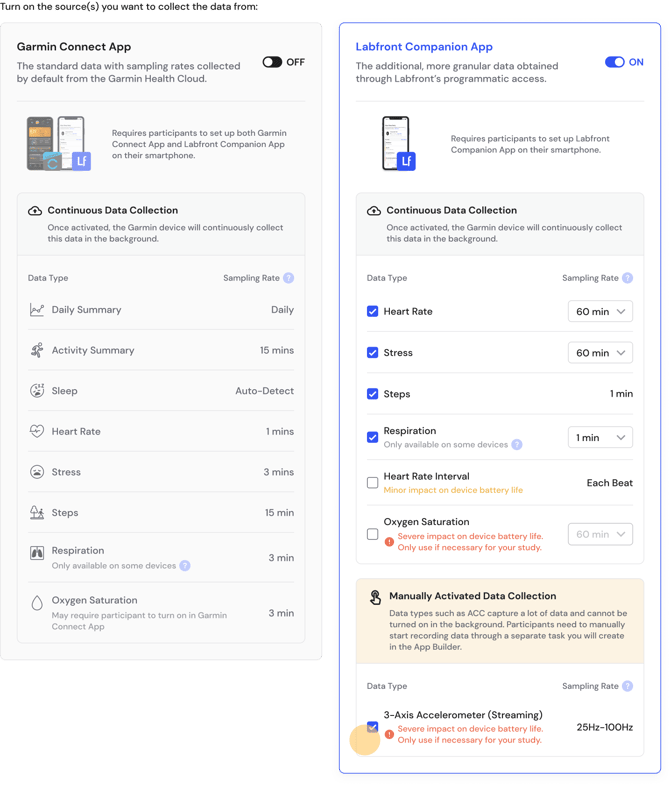
Click Save. Labfront will prompt you to create a Garmin Streaming Task — this is expected. Because ACC data isn't collected continuously in the background, you need a task that lets participants activate recording on demand.
Learn more about continuous background vs. manually activated data collection→
Create a Garmin Streaming Task
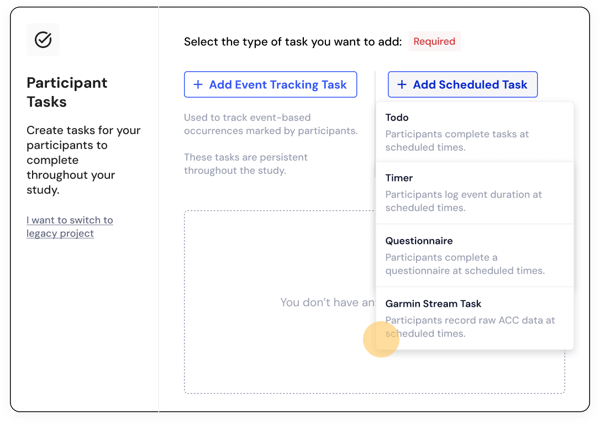
In the App Builder, go to Participant Tasks and click + Add Event Tracker or + Add Scheduled Task, then select Garmin Stream Task from the dropdown.
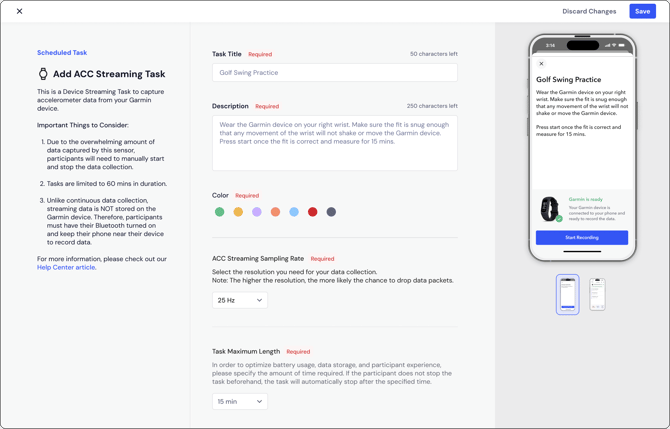
Fill in the following fields:
- Name. Choose something participants will immediately understand.
- Description. Tell participants what to do and what to expect. At minimum, remind them to manually start and stop recording, keep Bluetooth on, and stay within 10 meters of their phone throughout the session.
- Color. Assign a color to make the task card visually distinct from others in the participant app.
- Task Schedule (Scheduled tasks only). Set when participants receive this task. Choose a fixed time or a random schedule. You can add multiple schedules if needed.
- ACC Streaming Sampling Rate. Choose 25 Hz, 50 Hz, or 100 Hz based on the resolution your study requires.
- Task Max Length. Set the maximum session duration to manage battery usage and data storage. If a participant doesn't stop the task manually, it stops automatically at this limit.
Note
The higher the resolution, the more likely the chance to drop data packets. Please keep this in mind when choosing the resolution for your task.
Click Save when you're done.
What participants see
Once you publish your project and participants have linked their Garmin device in the Labfront Companion app, the Streaming Task appears in their task list automatically.
To start a recording session, participants read your task instructions, confirm the device is on and worn correctly, and tap Start Recording. They stop the session the same way when finished.
Note
Because streaming data is not stored on the Garmin device itself, participants need Bluetooth on and their phone nearby throughout the session.
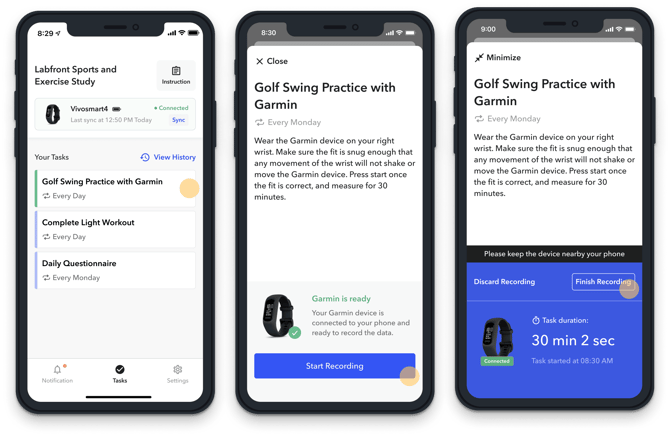
See the full guide on completing a task in the participant app →
💡 Tip
If your study requires high-resolution movement data from multiple axes, Labfront also supports Movesense sensors, which collect 9-axis IMU data.
FAQs
What unit is accelerometer data measured in?
The accelerometer (ACC) data is measured in mG (milli-g's). You can find our data documentation here.
Can ACC data be captured continuously (logging) instead of as a streaming task?
ACC logging is available via select Garmin devices upon request. Contact our Labfront team at hello@labfront.com to discuss your study requirements.
Is the accelerometer data raw or processed?
The Labfront Companion app delivers raw accelerometer data directly from the Garmin device, with no preprocessing applied.