
Before you begin
This guide is for those collecting data from both the Garmin Connect and Labfront Companion apps. If you're only using one app, follow the relevant guide:
Setting up Garmin Connect and Labfront Companion
Step 1: Download the Garmin Connect app
-
Open the app and tap Create Account. You'll need a valid email address and a unique password. Your researcher may provide one for you.
 on
on Step 2: Pair your Garmin smartwatch
Before you start, confirm your smartwatch:
- Has sufficient battery
- Has Bluetooth pairing mode on
- Is physically close to your phone (your phone's Bluetooth must also be on)
Android
-
Open the Garmin Connect app.
-
Select More (bottom right).
-
Select Garmin Devices.
-
Select Add Device.
-
Select your device.
-
Place your Garmin device into pairing mode. This allows the Garmin Connect app to find it.
-
This setting is typically found under Settings > Bluetooth or Phone > Pair Mobile Device or Pair Phone. Refer to your owner's manual for specific steps.
-
-
From the Garmin Connect app select Start or Connect it.
-
Input or confirm the six-digit code displayed on your watch in the Garmin Connect app.
Apple iOS
-
Open the Garmin Connect app.
-
Select More (bottom right).
-
Select Garmin Devices.
-
Select Add Device.
-
Select Find Nearby Accessories.
-
Place your Garmin device into pairing mode. This allows the Garmin Connect app to find it.
-
This setting is typically found under Settings > Bluetooth or Phone > Pair Mobile Device or Pair Phone. Refer to your owner's manual for specific steps.
-
-
From the Garmin Connect app, once your device is found select Set Up.
-
Confirm the six-digit code displayed on your watch matches the code in the Garmin Connect app.
-
Select Done.
Pairing Issues
If pairing fails, restart both your phone and Garmin device, toggle Bluetooth off/on, and ensure the 6-digit code is correctly entered. Still stuck? Contact your researcher or visit Garmin's support page.
Step 3: Download the Labfront Companion app
-
Enter the 6-character invite code your researcher gave you, then tap Get Started.
-
You'll see a confirmation screen verifying you've joined the correct study. Select Join Project.
 an
an
.png?width=519&height=335&name=Labfront%20Sign-In%20(1).png)
Step 4: Link Garmin Connect to Labfront Companion
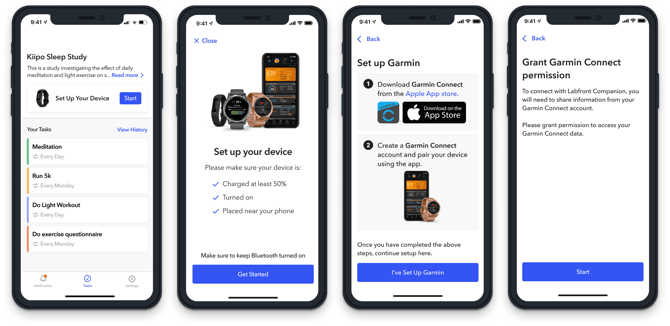
After joining the project, you'll land on your project home screen. Labfront pulls physiological data from your smartwatch through Garmin Connect, so the two apps must be connected.
-
Tap Get Started and follow the in-app steps.
-
Grant Garmin Connect permission to share data with Labfront Companion.
-
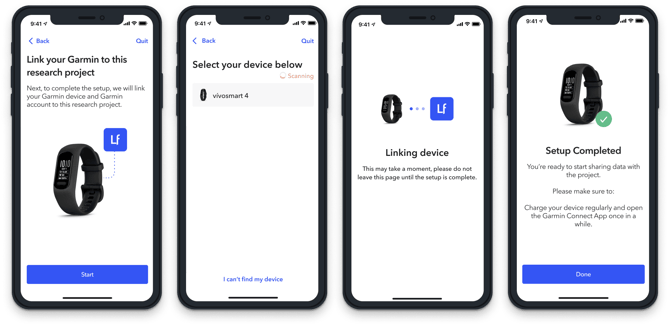
Link your Garmin device to your project.
Your project home screen will show your device as connected once linking is successful.
.png?width=670&height=349&name=Garmin%20Permission%20(1).png)
Keep your data syncing
Open both Garmin Connect and Labfront Companion regularly according to your researcher's sync instructions. If you haven't received guidance on how often to sync, ask before your study begins.
When syncing Labfront Companion, keep the app open in the foreground until you see confirmation that all data has uploaded. Backgrounding the app mid-sync can interrupt the upload.
Learn more about syncing data→
Troubleshooting
Garmin Connect pairing failures
If pairing fails, restart both your phone and Garmin device, toggle Bluetooth off/on, and ensure the 6-digit code is correctly entered. Still stuck? Contact your researcher or visit Garmin's support page.
Labfront pairing failures
If pairing fails, toggle Bluetooth off/on, reboot device and check that your device is in pairing mode.
-
This setting is typically found under Settings > Bluetooth or Phone > Pair Mobile Device or Pair Phone. Refer to your owner's manual for specific steps.
Android battery optimization
Some Android devices (Huawei, OnePlus, Xiaomi, Samsung) have battery or performance optimization settings that can interrupt background data collection.
Check whether your device has an optimization whitelist and, if so, add Labfront Companion to it. Learn how here.
Related
Participant App Troubleshooting