
In this article:
- Differences between skip logic and display logic
- Using skip and display logic in Labfront
- Advanced tips for using skip and display logic
- Example use cases of skip and display logic in Labfront
- FAQs
What is the difference between skip logic and display logic?
While both skip logic and display logic allow you to change the questionnaire path based on a participant's answers, they function a bit differently.
Here is the quickest way to distinguish between the two:
-
Skip logic is about movement. It acts like a fast-forward button ⏩. If a participant answers a certain way, they're immediately transported to a later point in the questionnaire, skipping over everything in between and preventing them from seeing irrelevant questions.
-
Display logic is about visibility 👀. It acts like a toggle switch. It decides whether a specific question appears or stays hidden on the page based on a previous answer.
Skip logic
Skip logic (sometimes called "Branching") is used to route participants down different paths. It creates a "If answer is [Answer Option], then go to [Destination]" rule. A user will jump forward to a specific question, section, or the end of the questionnaire.
Use skip logic when:
- You have a screening questionnaire and need to disqualify participants who don't meet criteria (e.g., a participant didn't do the exercise).
- You have distinct blocks of questions that only apply to specific groups (e.g., a "Parents" section vs. a "Non-Parents" section).
- You want to efficiently end a questionnaire for users who don't need to answer further questions (e.g., if they report feeling "Great").
Skip logic limitations
- Only works with single-answer question types (Multiple Choice, Number) because a user cannot "skip" to multiple destinations.
- Navigation is strictly forward-only to prevent infinite loops.
Display logic
Display logic (sometimes called "Conditional Visibility") allows you to show a question or entire section only if specific conditions are met. If the conditions aren't met, the question or section remains invisible.
Use display logic when:
- You need immediate details on a specific answer.
- You want to keep your survey looking short and clean by hiding irrelevant questions.
Example:
- Q1: "Did you experience any symptoms today?" (Yes/No)
- Q2: "Select all symptoms that apply." (Set Display Logic: 👀 Display Q2 if Q1 is "Yes")
Summary
Feature |
Primary Action |
Best Used For |
Example Scenario |
Skip Logic |
Jumps forward to a specific section or end of survey. | Screening participants or bypassing large sections of irrelevant questions. | Participant answers "No" to consent form → Skip to "Submit the questionnaire". |
Display Logic |
Shows/Hides a specific follow-up question or section. | Asking for details on a specific answer without breaking the flow. | Participant answers "Yes" to "Do you drink coffee?" → Show question "How many cups per day?" |
Using skip and display logic in Labfront
Before you begin
We recommend drawing your survey flow on a whiteboard or paper. Logic can get complex quickly!
To use skip/display logic in Labfront, you'll first need to create a questionnaire task.
Question-level controls
Accessing logic
-
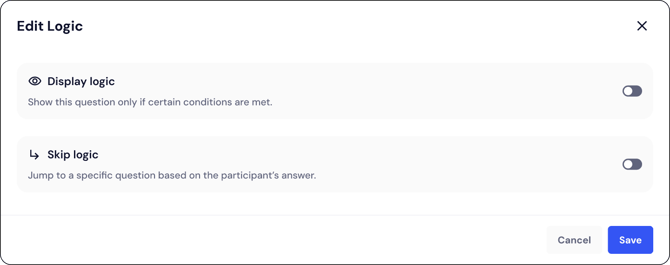
To add or edit logic for an individual question, click the "Edit Logic" button. You will see a dedicated toggle switch for Display Logic and Skip Logic.

Display logic setup
-
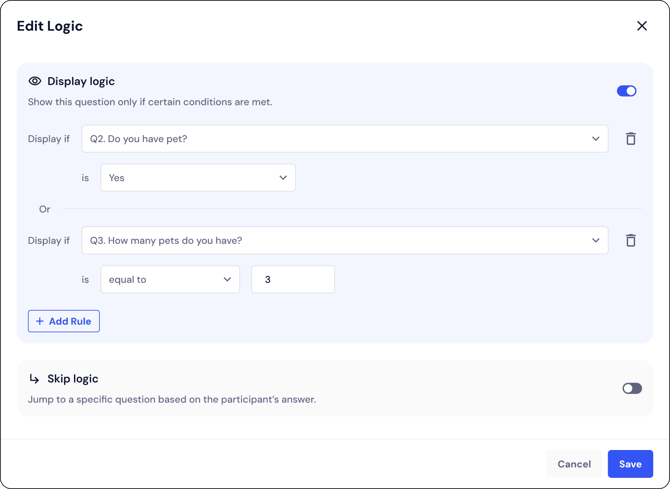
Toggle Display Logic on to show this question only if certain conditions are met.
-
Click "+Add Rule" and define the condition using the format: "Display if [Question] [Answer Value] is selected."
-
If you add multiple rules, they function as an OR operator, meaning the question will be visible if any of the rules are true.
Skip logic setup
-
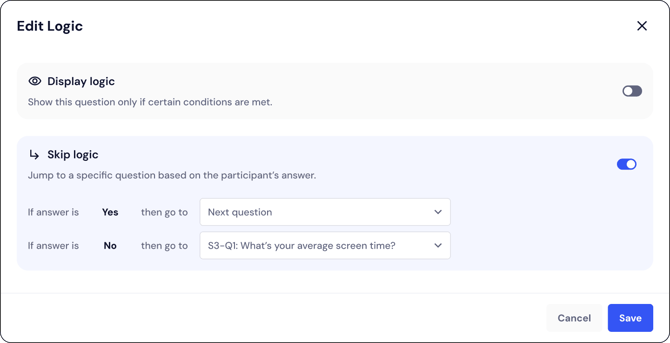
Toggle Skip Logic on to route the participant based on their response.
-
Set the condition using the format: "If answer is [Answer Option], then go to [Destination]." Destinations can be a specific question, a section, or the end of the questionnaire.
Section-level controls
Display logic for sections
-
Sections use Display Logic to appear only when needed (ideal for grouping questions, as discussed in the Advanced Tips).
-
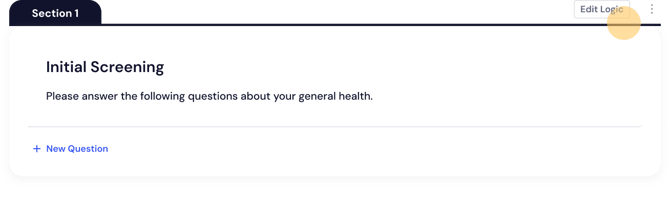
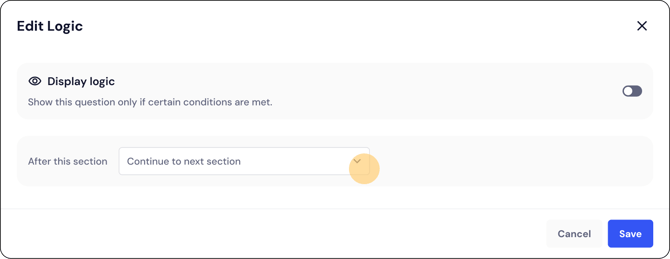
To add or edit logic for a section, click the "Edit Logic" button in the section header
-
When editing the section's logic, define the conditions using: "Display if [Question] [Answer Value] is selected."
-
The "+Add Rule" button creates multiple conditions linked by the OR operator.
Controlling flow out
- The setting "After this section", visible at the bottom of the logic window, controls the flow out of the section (e.g., "Continue to next section" or "Submit questionnaire"). This is useful for creating definitive end points, as described in the "Soft Landing" strategy.
Best practices for researchers
When building your Labfront questionnaire with skip/display logic, keep these tips in mind to ensure a smooth user experience:
-
Map it out first: Before building in the editor, draw your survey flow on a whiteboard or paper. Logic can get complex quickly!
-
Test your paths: Always preview your study as a participant. Try every combination of answers to ensure you aren't accidentally skipping important questions or hiding necessary ones.
Advanced tips & tricks
Once you've mastered the basics, use these strategies to make your questionnaire building faster and your participant experience smoother.
1. Save time with section logic
If you have a large block of questions that all depend on the same answer (e.g., 10 questions asking about "Last Night's Sleep"), you don't need to apply display logic to every single question.
Instead, move those questions into a section and apply the display logic to the section itself. If the condition isn't met, the entire section (and all questions inside it) will remain hidden. This keeps your setup clean and reduces the chance of errors.
2. How skip and display logic interact
A common question researchers ask is: "What happens if I set a skip logic rule that jumps to a question that is currently hidden by display logic?"
Don't worry! Labfront handles this automatically to prevent errors.
If the destination question is hidden (because its display logic criteria were not met), the system will automatically skip that hidden question and display the next available visible question instead.
3. The "soft landing" strategy (avoiding bias)
In many studies, you may want to end a questionnaire early based on an answer (e.g., disqualification). However, if a participant selects an answer and the button immediately changes to "Submit Questionnaire," they might realize they are being cut short. This can sometimes cause participants to go back and change their answers to "please" the researcher.
To avoid this:
- Create a final section at the very end of your survey titled "Conclusion" or "Thank You."
- Add a simple text block saying, "Thank you for your responses."
- Set your skip logic to jump to this conclusion section rather than choosing "Submit the questionnaire" directly.
This ensures every participant feels they reached a natural conclusion, regardless of how many questions they answered.
Example use cases of skip and display logic in Labfront
Use case: Screening for specific lifestyle habits
For health researchers, skip and display logic are essential tools for creating clean datasets by ensuring participants only answer questions relevant to their current habits or medical status.
Case Study: Intermittent Fasting (IF) research
Imagine you're studying the impact of Intermittent Fasting on sleep quality. You only want detailed IF scheduling information from participants who actively practice it.
Section / Question |
Participant Action |
Logic Applied |
Outcome |
Section 1: Screening |
|||
S1-Q1: "Do you currently practice Intermittent Fasting (IF)?" (Yes/No) |
Answers "No" |
⏩ SKIP LOGIC: If "No", jump immediately to Section 3: Sleep and General Health. |
Skips all IF-specific questions and moves to general health questions. |
|
Answers "Yes" |
NO SKIP: Continues to the next section. |
Proceeds to the detail questions in Section 2. |
|
Section 2: IF Details |
⏩ SKIP LOGIC: If S1-Q1 is "No", jump immediately to Section 3: Sleep and General Health. |
||
S2-Q1: "What IF protocol do you follow? (16:8, 5:2, etc.)" |
Collects detailed data necessary for the study. |
||
S2-Q2: "How long have you been following this protocol?" |
Collects detailed data necessary for the study. |
||
Section 3: Sleep & General Health |
|||
S3-Q1: "How would you rate your sleep quality last night?" |
DEFAULT FLOW: All participants (both IF and non-IF) answer this question. |
Ensures all core study data is collected regardless of the skip/display path. |
Key takeaway
By using skip logic, you ensured that non-IF participants save time, and your collected data only contains IF protocol details from relevant participants, eliminating clutter and missing data points.
Use case: Targeted mental health screening
In clinical or behavioral studies, it's crucial to collect detailed information about symptoms or coping mechanisms only from participants who screen positively for a condition.
Case study: Anxiety symptom and coping follow-up
Imagine you're using a validated screening tool (like a simplified GAD-7) and need to collect deep, qualitative data on coping mechanisms only from participants who indicate moderate-to-severe anxiety symptoms.
Section / Question |
Participant Action |
Logic Applied |
Outcome |
Section 1: Initial Screen |
|||
S1-Q1: "Over the last 2 weeks, how often have you felt nervous, anxious, or on edge?" (Scale of 1-4) |
Answers 1 or 2 (Low Symptom Load) |
NO DISPLAY LOGIC TRIGGER: Continues to Section 3. |
The participant does not see the sensitive, detailed follow-up questions. |
|
Answers 3 or 4 (Elevated Symptom Load) |
DISPLAY LOGIC TRIGGER: Activates the conditional section below. |
Proceeds immediately to the required follow-up section. |
|
Section 2: Coping Strategies |
👀 DISPLAY LOGIC: This entire section is shown ONLY IF Q1 is [3] or [4]. |
||
S2-Q1: "Have you sought help from a professional?" |
|
Ensures detailed coping data is only gathered from the high-symptom cohort. |
|
S2-Q2: "Please describe your most effective coping mechanism." |
|
Gathers sensitive, qualitative data without burdening low-symptom participants. |
|
Section 3: General Study Questions |
DEFAULT FLOW: All participants (regardless of Q1 answer) proceed here. |
||
S3-Q1: "How would you rate your overall stress level today?" |
All core study questions are answered by everyone. |
💡Tip: Save time with section logic
If you have multiple questions that depend on the same answer, save time by grouping them into a section and applying display logic to the section. This way, if the condition isn’t met, the entire section, and all its questions, stays hidden, streamlining your setup and reducing errors.
Key takeaway
This use case demonstrates the power of display logic to efficiently filter participants and target specific, sensitive questions only to the cohort that meets a predetermined clinical threshold, ensuring high data relevance and reducing questionnaire burden for others.
FAQs
When should I choose skip logic vs. display logic?
Use skip logic when you need to move the participant past a large block or section of irrelevant content. Use display logic when you need to reveal a specific follow-up question based on the immediate preceding answer.
Is there a limit to how many logic rules I can create?
While there is no strict technical limit, we strongly advise against creating overly complex, question-by-question logic. The best practice is to group questions into sections and apply display logic to the section header.
Can I use skip logic to send a participant backward in the survey?
No. Skip logic is designed exclusively for forward movement (jumping ahead). Sending a participant backward risks creating infinite loops and data confusion, which Labfront prevents.
How does skip and display logic impact participant retention?
Significantly. By ensuring participants only see questions relevant to them, we dramatically reduce cognitive load and survey fatigue, leading to higher completion rates and more reliable longitudinal data collection.
What happens if a participant skips a question? How is the data recorded?
Data for all skipped questions will be recorded as Empty in the final export. This is normal and intentional; it signifies that the logic rule was executed and the question was irrelevant to that participant's path.
How are required questions handled when they are hidden or skipped?
A question marked as Required means it must be completed by the participant once they see it. If the question is hidden due to display logic or bypassed using skip logic, it's considered never seen by the participant. Therefore, the "Required" status is automatically nullified (waived) by the system, ensuring the questionnaire flow isn't blocked and the participant can submit successfully.
What happens if a skip logic rule targets a question that is hidden by display logic?
The system will gracefully handle the conflict. It will ignore the hidden target question and automatically display the next available visible question in the sequence. This ensures the participant never gets stuck.
Does using Labfront's skip and display logic affect our data integration with external tools?
No. The data model remains consistent. Logic rules only determine which data is collected, not how the final data is structured. Skipped questions will simply contain null values, which is standard for research data analysis.
Can I use logic based on data collected outside of the questionnaire (e.g., wearable sensor data)?
Currently, logic rules are based only on answers provided within the questionnaire itself. They cannot be directly linked to real-time wearable or sensor data.