
Choose the right slider type
Labfront offers two slider formats. The right choice depends on whether your scale uses labeled categories or a numerical continuum.
Slider (Option)
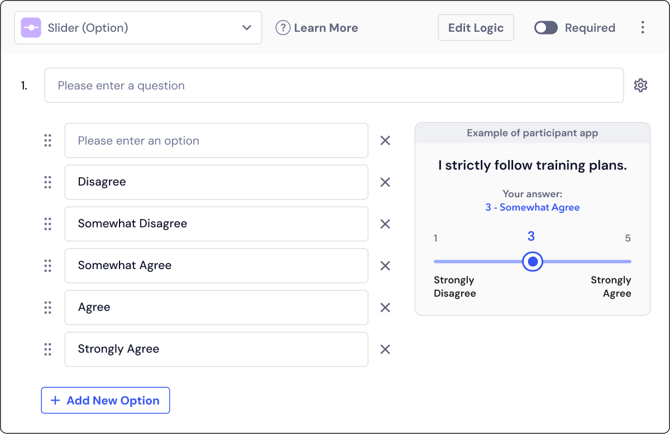
Works best for Likert-style questions where each point on the scale has a distinct text label, such as "Strongly Disagree" through "Strongly Agree." Add and reorder labels using the + Add New Option button. In the participant app, the slider snaps to each labeled option as participants drag.

Slider (Range)
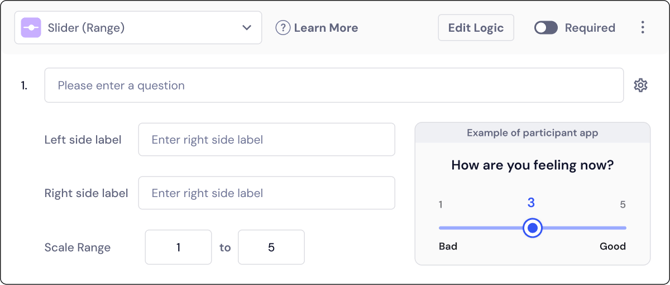
Works best for continuous numerical scales measuring intensity or frequency, such as pain ratings or mood scores. Set a minimum and maximum in the Scale Range fields, then add anchor labels for each end of the scale. The participant app displays the selected number in real time as participants move the slider.
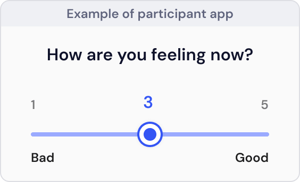
Slider (Option) vs Slider (Range)
Slider type |
Best used for |
Customization options |
Participant view |
Slider (Option) |
Categorical or Likert scales where text labels represent distinct milestones. | Add multiple textual choices using the + Add New Option button. |
Participants drag the selector to view and select the exact labeled text. |
Slider (Range) |
Numerical scales measuring intensity or frequency across a continuum. | Set a Scale Range (e.g., 1 to 5) and define explicit Left side and Right side labels. |
Participants see a numerical value update in real-time as they slide across the bar. |
Configure your slider questions
1. Select the slider type
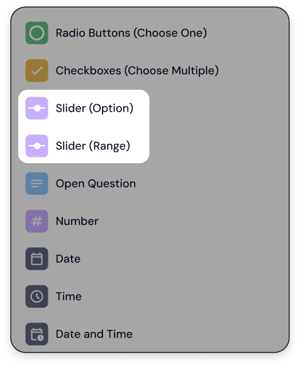
Open the questionnaire builder, add a question, and select either Slider (Option) or Slider (Range) from the question type dropdown menu.
2. Write your prompt
Type your question into the question field (e.g., "How are you feeling now?" or "I strictly follow my training plan.")
3. Define your scale
For Slider (Option): Enter each label in a separate option field. Drag the handle on the left to reorder options. Add new options with + Add New Option.
For Slider (Range): Enter the minimum and maximum values in the Scale Range fields. Add anchor labels in the Left side label and Right side label fields to orient participants.
4. Set response rules
Toggle the Required switch if participants must answer this question before submitting their survey.
FAQ
What's the difference between sliders and radio buttons (multiple choice)?
Both capture single-select categorical responses. Sliders present the choices as a draggable scale, which works well for ordered response sets like Likert items. Radio buttons display all options simultaneously as a list. Use a slider when order and relative distance between options matter to your participants.
Can I use skip logic with slider questions?
Yes. Select Edit Logic on any slider question to set conditions based on the participant's response. This works for both slider types.
Learn more about using skip and display logic in Labfront→
Can I set a scale larger than 1 to 5?
Yes. The Scale Range fields in Slider (Range) accept any integer values. Set your minimum and maximum to match your validated instrument, such as 0 to 100 for a visual analogue scale.