
In this article:
Before you begin
In addition to using the Project Overview page to monitor daily data flow, you can use the Adherence page for a closer look into long-term participant compliance.
Navigating the Project Overview page
The Overview page provides a high-level view of your study. It allows you to monitor participant setup, track data collection, and identify specific participants who may need intervention.
.png?width=670&height=251&name=HC_Adherence_Overview_Labels%20(1).png)
Participant setup status
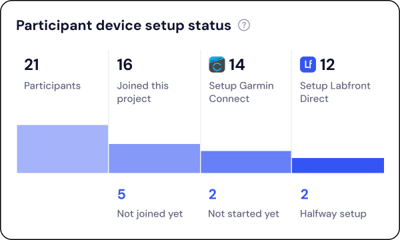
This card tracks the onboarding progress of your cohort. At a glance, you can see:
-
Joined this project: Participants who have entered their unique 6-character invite code.
-
Setup Garmin Connect: Participants who have successfully linked their wearable account.
-
Setup Labfront Direct: Participants who have completed the necessary app permissions for data syncing.
-
Halfway setup: Participants who have started but not yet finished the onboarding process.
View our participant onboarding resources→
Heat maps (data collection status)
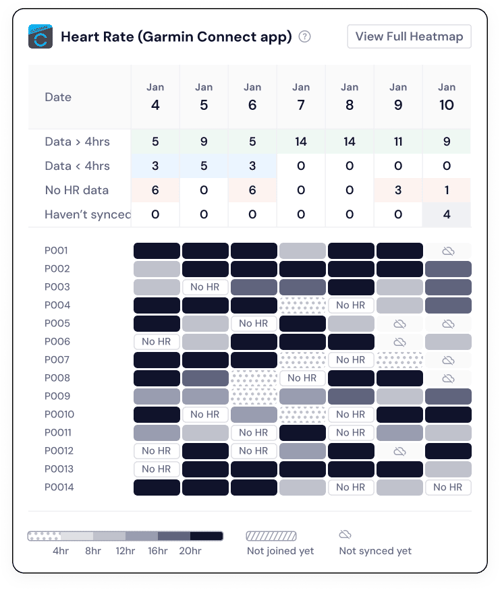
The center of the Overview page features heat maps for both heart rate (Garmin Connect) and BBI (Labfront Companion App). These provide a visual representation of data density over the past week.
-
Understanding the colors: Darker cells indicate more hours of data collected (up to 24 hours), while lighter cells indicate less data.
-
Drill down: Click View Full Heatmap to see a detailed, participant-by-participant breakdown for the entire duration of your study on the Adherence page.
Task list
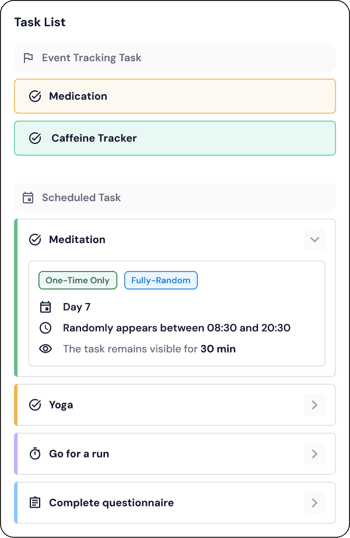
This allows you to monitor the status and configuration of all activities assigned to your participants.
-
Event tracking tasks: These are tasks that participants can initiate at any time.
-
Scheduled tasks: These tasks appear at specific times or follow a set schedule. Click on a scheduled task to view its specific parameters.
Issue alerts
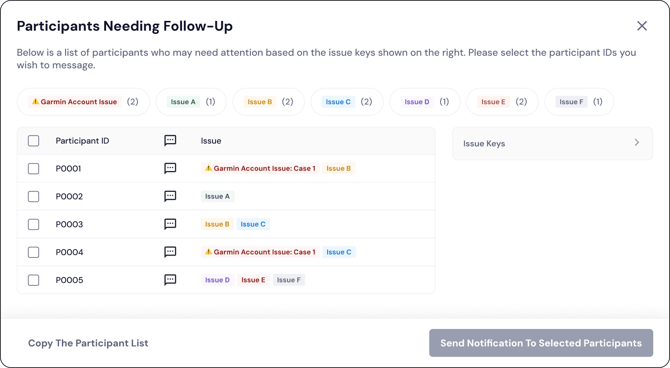
The Participants Needing Follow-Up card automatically flags individuals who may require intervention to maintain data adherence.
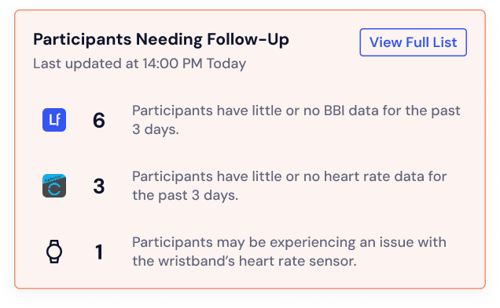
Clicking View Full List opens a detailed breakdown of specific issues:
Issue keys & definitions
Key |
Meaning |
Suggested action |
|
Garmin Account Issue
|
Multiple participants are using the same Garmin Connect account, which can cause their data to be averaged together. Each “Case” groups participants sharing a single GC account. For example, if 3 participants use the same GC account, all 3 will be labeled “Case 1.” | Contact Labfront Support and provide the participant IDs of the participants with this issue. |
|
Issue A
|
Participant has not opened the Labfront Companion app in the past 3 days. | Remind participant to open the app regularly. |
|
Issue B |
Participant has not synced with the Labfront Companion app in the past 3 days. |
Remind participant to keep the app open until syncing completes. |
|
Issue C |
Participant has little or no BBI data from the Labfront Companion app for the past 3 days. | Remind participant to wear their device consistently throughout the day. |
|
Issue D |
Participant has little or no heart rate data from Garmin Connect for the past 3 days. | Remind participant to wear their device consistently throughout the day. |
|
Issue E |
Potential hardware issue detected with the wristband's heart rate sensor. | Ask participant to restart/reboot the device. |
|
Issue F |
No data from the Garmin Connect app in the past 3 days. | Ask participant to open the Garmin Connect app. If the issue persists, contact Labfront Support. |
|
Issue G |
Participant has logged out from the Labfront Companion app. | Ask participant to log back into the Labfront app. You will need to regenerate an invite code from the researcher dashboard. |



💡 Pro Tip
You can select specific Participant IDs from this list and click Send Notification To Selected Participants to message them directly.
Sending messages and reminders
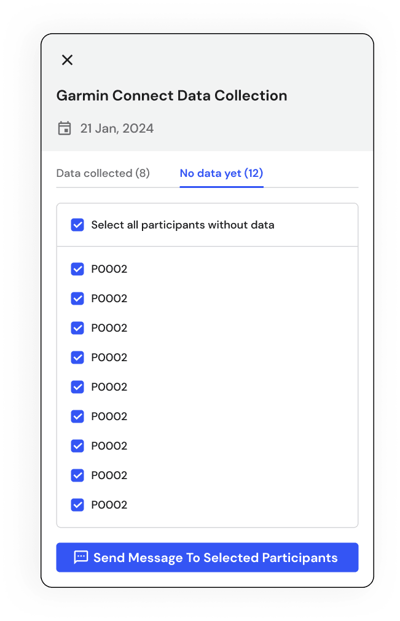
Communication is key to high adherence. You can send messages directly from the Overview page to keep participants engaged:
-
Targeted Messaging: Click on any specific cell or "Issue Alert" to message those specific participants who are missing data.
FAQs
How long after a participant syncs will their data appear on the dashboard?
After a participant syncs and uploads their data, it should appear on the dashboard in near real-time, though occasional short delays are possible.
How can I see data collection history beyond the current week?
You can click the "View Full Heatmap" button on either the Heart Rate or BBI cards to access the full history of the project. You can also navigate to the Adherence tab.
How can I quickly message only the participants with a specific problem?
You can click on specific issue keys or Participant IDs within the "Participants Needing Follow-Up" list to send targeted notifications.
Why is there Labfront Companion data but no Garmin Connect data?
-
Check sync habits - Ensure the participant is opening the Garmin Connect app regularly to allow the watch to sync its data. This is the most likely cause of this issue.
-
Verify permissions - The connection between Garmin and Labfront may have been revoked.
-
How to check: In Garmin Connect, go to Settings > Connected Apps. Ensure Labfront is listed and active.
-
-
Check for account mismatch - The participant might be logged into a different Garmin account than the one linked to Labfront.
-
How to check: In Garmin Connect, go to Settings > Profile & Privacy > Manage Garmin Connect Account to verify the email address. If the accounts don't match, the participant should log out of both apps and log back in using the correct, matching credentials.
-
Where can I find more resources to help participants troubleshoot common issues?
We provide detailed guides and videos in our Help Center to assist participants with common issues such as syncing devices and updating the app.
Find participant app troubleshooting tips here→
Why is there Garmin Connect data but no Labfront Companion data?
The most likely reason is that the participant is only syncing with the Garmin Connect app. Remind participants to open the Labfront Companion app. They should stay on the Labfront screen until they see the "Upload Completed" message.
If they're having difficulties syncing, they can refer to this troubleshooting guide.