
What's covered in this article:
Where to find battery status
Battery warning icon: Participant list
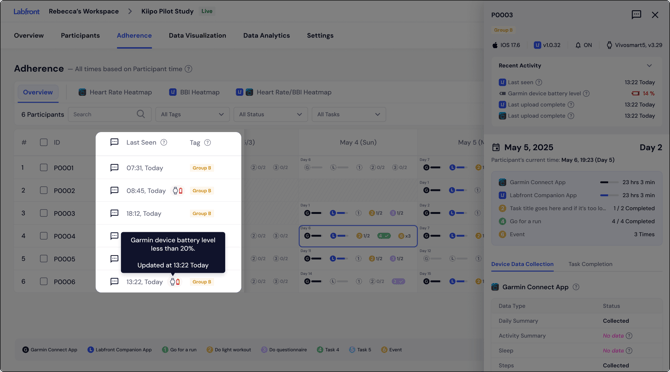
In the both the Adherence and Participants tabs, each row in the participant list shows a small battery icon next to the participant’s ID when their Garmin device battery is low (<20%). Hovering over the icon shows a tooltip with:
-
The warning: “Garmin device battery level less than 20%”
-
The timestamp of the last update, e.g. Updated at 13:22 Today
💡 Tip
You don’t need to open each participant’s profile, the battery warning icon in the list lets you quickly scan all participants at once.
Exact battery percentage: Participant side panel
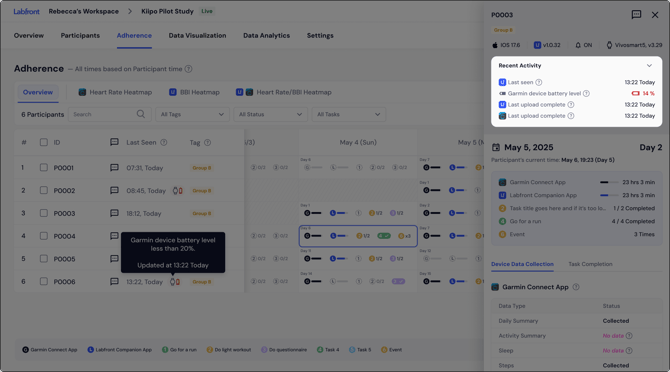
Click any participant in the participant list to open their detail panel on the right.
Under Recent Activity, you’ll see the Garmin device battery level which shows the exact percentage (e.g. 14% in red when low)
How battery data updates
Battery level data is pulled directly from the Garmin device and displayed in Labfront. There are two key things to understand:
Battery level refreshes on sync
Battery levels are not tracked in real time. The battery percentage shown reflects the device's battery at the time of its most recent sync with the Labfront Companion app. If a participant hasn’t synced recently, the displayed level may be out of date.
Always check the timestamp
The tooltip and side panel both show when the battery reading was last updated. A reading from several hours or days ago may no longer reflect the current charge. If the timestamp is stale, treat the battery status as unconfirmed until the participant syncs again.
💡 Tip
Encourage participants to open the Labfront app regularly. Each time they sync, battery and device data is refreshed in your dashboard.
What to Do When Battery Is Low
If you see a battery warning for a participant, take these steps:
-
Check the timestamp. Hover over the battery icon or open the participant panel to confirm when the reading was last updated.
-
Contact the participant. Send the participant a reminder to charge their device.
-
Ask them to sync after charging. Confirm the update. Refresh the Adherence dashboard and check that the battery warning has cleared and the "Last upload complete" timestamp has updated.
FAQs
Why hasn’t the battery level updated since yesterday?
Battery data only refreshes when the participant’s device syncs with the Labfront Companion App. If they haven’t opened the app recently, the reading won’t change. Check the timestamp shown in the tooltip or side panel to see when data was last received.
Is battery data available for all devices?
Battery visibility is currently supported for Garmin devices capturing Labfront Companion data. If battery data isn’t available for a participant’s device, the indicator will not appear or will show as Unknown.
What percentage triggers the low battery warning?
The low battery warning appears when a participant’s Garmin device battery falls below 20%. This threshold is fixed and applies to all studies.
Can I get automatic alerts when battery is low?
Automated low-battery alerts are not available in the current version. We recommend periodically checking the Adherence dashboard, particularly for participants in active or critical study phases. Alert functionality is planned for a future release.
A participant’s battery shows as low, but they say it’s fully charged. Why?
The dashboard reflects battery status at the time of the last sync, not the current moment. If the participant charged their device but hasn’t opened the Labfront Companion App since, the old reading will still be displayed. Ask them to open the app to trigger a sync, which will update the battery level.
The battery icon is showing but there’s no data gap — should I still act?
Yes. A low battery warning is a proactive signal, not a confirmation of data loss. Reaching out early, before the battery runs out, is the best way to prevent gaps from occurring in the first place.